
You SSH into an Ubuntu box for a quick fix, and the login banner reminds you that updates are waiting. That should be simple. Then the usual questions start. Do you just run apt update? Should you use apt upgrade or apt full-upgrade? Is this an APT package at all, or did someone install it as a Snap?
That confusion is normal because most guides treat package updates like a command lookup problem. It isn't. Updating package Ubuntu systems safely is a decision problem. You're balancing security, stability, dependency changes, rollout timing, and how much surprise you can tolerate on that machine.
A laptop, a dev workstation, and a production server should not all follow the same habit. The commands may overlap, but the strategy doesn't.
Table of Contents#
- Why Just Running Commands Is Not an Update Strategy
- The Core Ubuntu Update Workflow
- Targeting a Single Package for an Update
- Navigating the Package Manager Maze APT vs Snap vs Flatpak
- Advanced Control With Holding and Auditing
- Automating Security With Unattended Upgrades
- Troubleshooting Common Ubuntu Update Issues
Why Just Running Commands Is Not an Update Strategy#
A lot of people search for update package Ubuntu when what they really want is one of three different outcomes. Refresh the package catalog. Install newer package versions. Patch one specific package without disturbing the rest of the machine. Those are different jobs, and Ubuntu treats them differently.
That matters because package updates are where convenience and risk meet. If you treat every update prompt the same way, you eventually hit a machine that needed caution instead of speed. Kernel transitions, library changes, third party repositories, and service restarts don't care that you were in a hurry.
A healthy Ubuntu system isn't the one that updates fastest. It's the one that updates predictably.
For developer workstations, predictability usually means you can accept broad package movement more often. For production servers, predictability usually means you update on purpose, with logs, rollback thinking, and a clear understanding of whether a dependency change is involved. If you manage fleets, config management matters even more than the command itself. A practical next step is CloudCops' guide to Ansible, because manual patching habits don't scale cleanly once you're responsible for more than a handful of machines.
There's also an operational blind spot that often goes unaddressed. The runbook for updates is often worse than the update process. People leave behind half-written notes, screenshots, or tribal knowledge in chat threads. Then the next admin repeats old mistakes. Good update hygiene includes clear internal procedures, especially when machines are maintained by multiple people over time.
The Core Ubuntu Update Workflow#
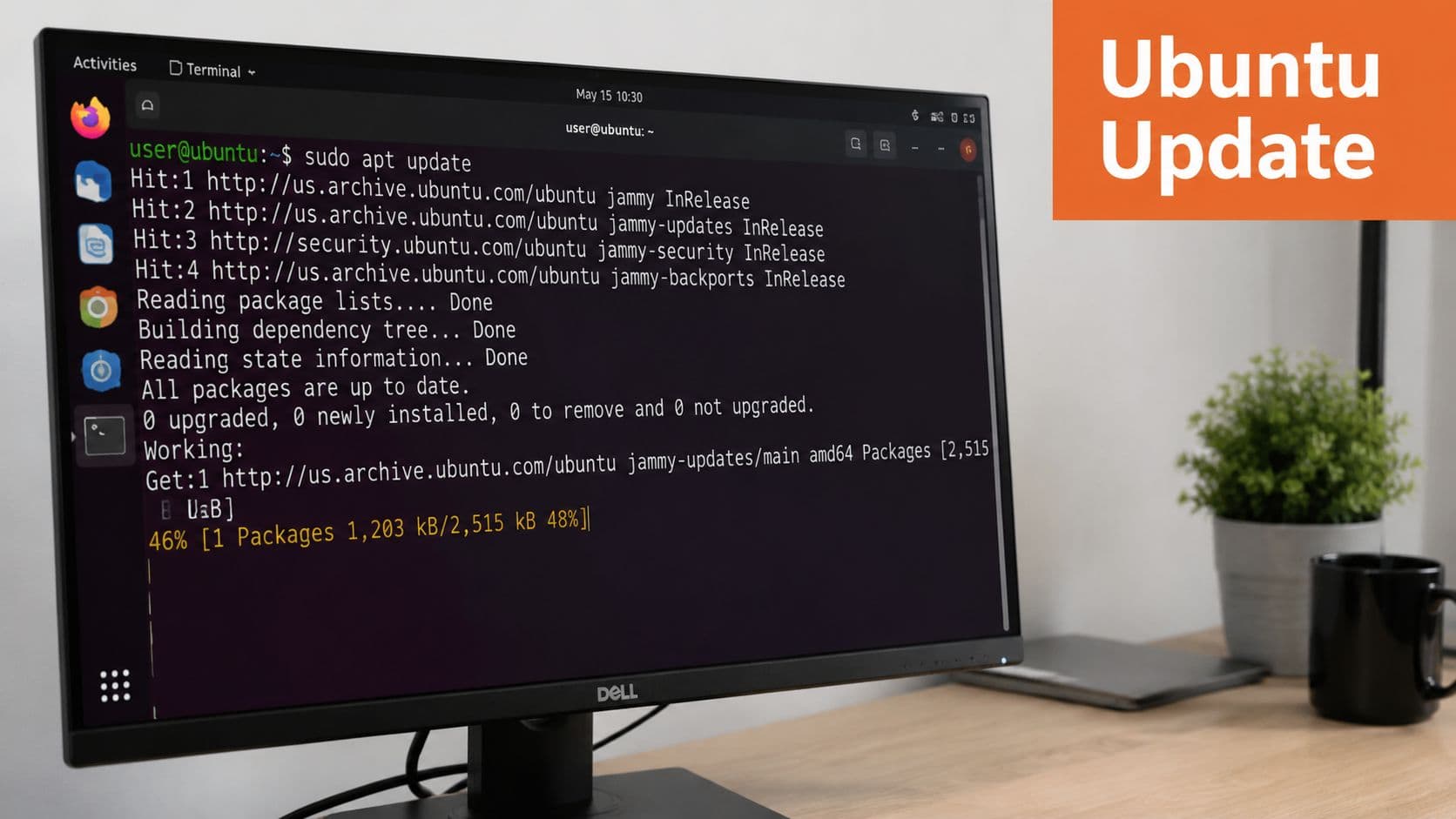
A lot of update mistakes start with one bad assumption. Someone runs apt update, sees a wall of package names fly by, and walks away thinking the machine is current. It is not. apt update refreshes what Ubuntu knows about available packages. apt upgrade is the step that changes the system.
What apt update does#
Start with:
sudo apt updateThis command refreshes the local package index from your configured repositories. It does not install newer versions of anything you already have. If the metadata on the machine is stale, every decision after that is based on old information. That is why I treat apt update as the inventory step, not the patching step.
If you want to inspect before changing packages, run:
apt list --upgradableThat gives you a readable list of what APT can move after the index refresh. It is a good habit on servers, especially if you care about restart windows, package pinning, or third party repositories that can surprise you.
The basic workflow is straightforward:
-
Refresh metadata
Runsudo apt update. -
Review pending changes if needed
Runapt list --upgradable. -
Apply updates
Runsudo apt upgradefor the standard path.
Core principle:
apt updatetells your system what could be updated.apt upgradeis what installs newer package versions.
If your team wants this process done the same way every time, write it down in engineering runbooks for recurring system maintenance. Update quality usually breaks at the handoff, not at the command line.
When to use upgrade and when to use full-upgrade#
For routine maintenance, use:
sudo apt upgradeThis is the conservative default. It installs newer versions for packages that can be updated without removing packages or pulling in disruptive dependency changes. On workstations, that usually means less surprise. On servers, it usually means a smaller blast radius.
Use this when the system needs dependency changes to complete the update:
sudo apt full-upgradefull-upgrade can add, remove, or replace packages to satisfy dependencies. That matters during kernel transitions, driver changes, and larger library updates where the old package set no longer fits cleanly. It is the right tool when Ubuntu needs room to resolve the change set. It is also the command that deserves a quick review before you press Enter.
A simple rule works well in practice. Use upgrade for regular patching. Use full-upgrade when held-back packages, kernel work, or dependency shifts show up and you understand the impact.
| Situation | Better command | Why |
|---|---|---|
| Regular package maintenance | sudo apt upgrade | Lower risk, fewer dependency surprises |
| Kernel or major library transition | sudo apt full-upgrade | Allows package additions or removals to resolve dependencies |
| You want to see what will change first | apt list --upgradable then choose | Better visibility before action |
Two mistakes show up over and over. Admins stop after apt update and assume the host is patched. Or they use full-upgrade as the default on systems where package churn can break expectations. The stable approach is simpler than that. Refresh metadata, inspect when the machine matters, and choose the least aggressive command that gets the job done.
Targeting a Single Package for an Update#
Sometimes a full system upgrade is the wrong move. You may need a newer nginx, a patched runtime, or one library update for a project while leaving everything else untouched. In that case, target the package directly instead of moving the whole machine.
The safe way to update one package#
The cleanest pattern is:
sudo apt update
sudo apt install --only-upgrade nginx
You can swap nginx for the package you need. This tells APT to upgrade that package if it's already installed, without using the command as a fresh install path.
If you want to inspect before acting, do it in this order:
sudo apt update
apt list --upgradable
Then look for the package you care about. That gives you a sanity check before changing anything.
You can also use:
sudo apt install nginxIf nginx is already installed, APT can upgrade it as part of the install action. I still prefer --only-upgrade when I'm being surgical because it makes intent obvious.
When this approach is the right call#
Single-package updates make sense in a few common cases:
- Critical patching: You need to move one exposed service quickly, such as
nginx, without introducing unrelated package churn. - Stable dev environments: A project depends on the current state of the workstation, but one tool needs a newer package version.
- Careful production changes: You want a narrow blast radius and easier troubleshooting if something behaves differently afterward.
A realistic example:
sudo apt update
sudo apt install --only-upgrade python3
That doesn't mean zero risk. Updating one package can still interact with dependencies and service behavior. But it's a much more controlled move than a full host-wide upgrade when your goal is narrow.
One warning. If the package was installed through Snap or Flatpak instead of APT, these commands won't touch it. Before you try to update package Ubuntu software, verify which package manager owns the app.
Navigating the Package Manager Maze APT vs Snap vs Flatpak#
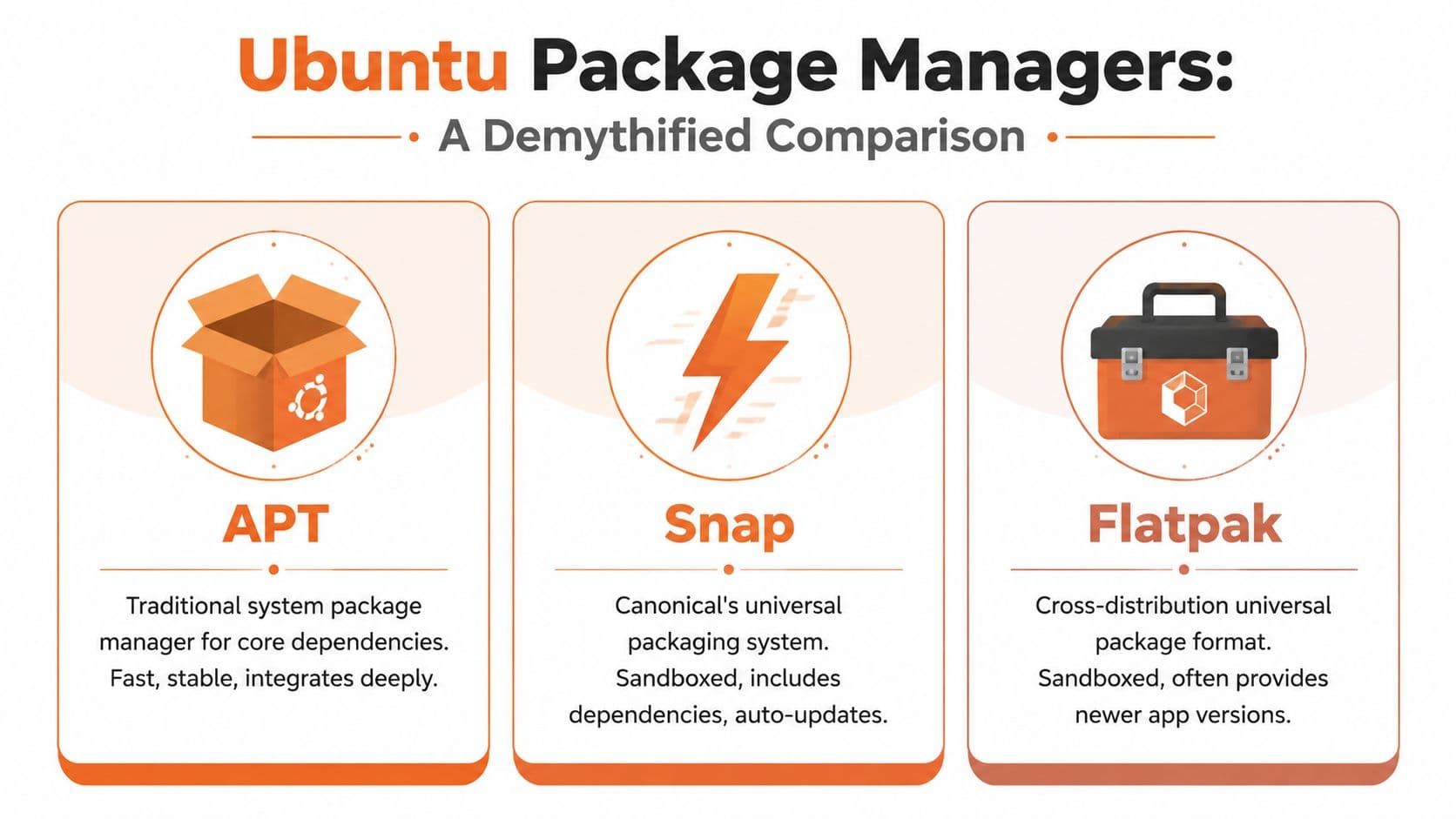
Ubuntu isn't an APT-only world anymore. On many systems, you'll see a mix of APT, Snap, and sometimes Flatpak. That's where update confusion starts, because people assume one command updates everything. It doesn't.
They solve different problems#
APT is the native system package manager for Ubuntu and other Debian-based systems. It's the right choice for core system components, libraries, developer tools, and services that should integrate tightly with the OS.
Snap packages are more self-contained. Canonical pushes Snap heavily for desktop apps and some server software. The upside is packaging consistency and isolation. The downside is that it can feel less transparent, especially when you want fine-grained control.
Flatpak is common for desktop apps, especially when you want newer app versions across distributions. It's less central to stock Ubuntu administration, but it's common enough that ignoring it leads to bad assumptions.
If you don't know how an app was installed, you don't yet know how to update it.
Package Manager Comparison APT vs Snap vs Flatpak#
| Feature | APT (apt/apt-get) | Snap | Flatpak |
|---|---|---|---|
| Primary role | System packages and core dependencies | Universal packages with Canonical integration | Cross-distribution desktop apps |
| Typical update command | sudo apt update then sudo apt upgrade | sudo snap refresh | flatpak update |
| Dependency model | Uses shared system libraries | Bundles more of its own dependencies | Bundles runtime layers and app dependencies |
| OS integration | Deep | Moderate | Usually app-focused rather than system-focused |
| Sandboxing | Limited by default package model | Yes, package isolation is a core design point | Yes, sandboxing is central |
| Best fit | Servers, libraries, CLI tools, base system | Apps that benefit from self-contained packaging | Desktop apps and newer userland software |
| Main trade-off | Stable and native, but versions may be conservative | Convenient and isolated, but less predictable feeling for some admins | Flexible for apps, but not a replacement for core OS package management |
What I'd choose in practice#
For servers, I'd choose APT first almost every time unless there's a strong reason not to. Core services belong in the package manager that matches the operating system.
For desktop applications, Snap and Flatpak can be perfectly reasonable. A browser, chat client, or design tool doesn't always need deep system integration. In those cases, isolation can be more valuable than purity.
For developer tooling, I still lean toward APT when the tool is part of the base environment. I want one obvious update path, fewer moving parts, and less confusion when I'm troubleshooting. Mixed package sources are manageable, but they increase operational ambiguity.
A bad pattern is forcing one philosophy onto everything. APT is not obsolete because Snap exists. Snap is not automatically wrong because some admins dislike it. Flatpak is not a server package manager. Use each where its trade-offs make sense.
Advanced Control With Holding and Auditing#
Mature Ubuntu administration starts when you stop thinking only in terms of “update all” and start thinking in terms of control. Sometimes the best update decision is to delay one package while you verify compatibility. Other times, the important question is not what should change, but what already changed.

Holding a package when stability matters more than novelty#
If a package version is known to be sensitive in your environment, hold it:
sudo apt-mark hold package-nameThat prevents normal upgrade flows from moving it forward. To remove the hold later:
sudo apt-mark unhold package-nameThis is useful when:
- An application depends on a specific library behavior: You need time to test before accepting a newer package.
- A database or service has version-sensitive plugins: Automatic movement can create avoidable breakage.
- You're isolating a problem: Holding the package removes one variable while the rest of the system continues receiving updates.
Holding packages is powerful, but it can also become lazy debt. If you hold something, record why and review it later. Permanent holds become hidden fragility.
Auditing what changed after an update#
Ubuntu gives you a built-in audit trail for APT operations. Recently installed or updated packages can be identified from /var/log/apt/history.log and related logs, which record package actions over time and support administrative reporting and rollbacks, as noted in this guide to Ubuntu APT history logs.
For day to day checks, these are the first places to look:
cat /var/log/apt/history.log
less /var/log/apt/history.log
If you're troubleshooting after a package change, that log is often more useful than memory. It tells you what was installed, upgraded, or removed, and in what sequence.
Operational habit: When a system starts acting differently after maintenance, check the APT history before you start guessing.
I've seen admins waste time blaming the wrong change because they didn't verify the package history first. The log usually settles the argument quickly.
Automating Security With Unattended Upgrades#
A server that gets patched only when someone remembers is already off policy. That is the primary value of unattended upgrades. They reduce the number of security fixes waiting on a human, which is exactly where routine maintenance fails.

What should be automated#
Automate security updates first. Treat broader package churn as a separate decision.
That line matters because not every update carries the same risk. Some package updates are simple version bumps. Others pull in new dependencies, replace packages, or remove old ones to satisfy dependency changes. As noted earlier, that is the difference between a routine upgrade path and the more aggressive behavior you allow with full-upgrade. For production systems, I want those dependency-changing moves reviewed unless the host is disposable or very well tested.
A practical policy usually looks like this:
- Security-only automation: A strong default for internet-facing servers and general-purpose VMs.
- Feature updates and dependency shifts: Schedule these during a maintenance window.
- Stateful or customer-facing systems: Patch automatically only if you understand restart behavior and have rollback options.
If you need tighter control over timing, read Fivenines' guide to cron jobs. Even if you stick with Ubuntu's native tooling, cron knowledge helps when you need to coordinate patch windows, service checks, or post-update scripts.
Teams managing many Ubuntu hosts should document the update policy somewhere operators will use. A shared runbook or ops documentation setup for IT teams is better than tribal knowledge about which machines patch themselves and which ones wait for approval.
Where automation goes wrong#
The common failure is not the tool. It is unclear policy.
Unattended updates should answer a few boring questions before you enable them. Which repositories are allowed. Whether package installs can trigger service restarts. Who reviews the logs. What happens if one host updates cleanly and another starts failing health checks an hour later. If those answers are missing, automation just hides risk until something breaks at 3 a.m.
Good unattended update setups usually include:
- Narrow scope: Auto-install the updates you trust without review.
- Restart awareness: Know which packages can bounce services and whether that is acceptable.
- Verification: Check logs and host health after updates instead of assuming success.
- Response ownership: Make it clear who investigates failed upgrades or unexpected behavior.
This walkthrough from Dokly's official channel is useful if you want a visual break before standardizing the process:
Automation works well when the scope is deliberate and the review loop still exists. It causes trouble when teams use it as a substitute for owning package changes.
Troubleshooting Common Ubuntu Update Issues#
Most Ubuntu update failures aren't mysterious. They're usually one of a few familiar problems: packages are kept back, dependencies are broken, or a third party repository is causing trust or metadata errors. The fix starts with understanding the category.
Why packages get kept back#
Users often assume “kept back” means something is broken. Often, it doesn't. Ubuntu guidance notes that packages may be delayed by phased rollouts, which intentionally hold some updates back for a subset of users to reduce regressions. In other words, not updating can be a safety feature rather than a malfunction, as explained in Framework's Ubuntu update best practices article.
That changes the right response. If a package is kept back, don't immediately force it just because it feels incomplete.
Use a simple check sequence:
-
Refresh metadata again:
Runsudo apt updateto make sure you're looking at current package information. -
Inspect pending upgrades:
Runapt list --upgradableand see whether the held package is part of a broader dependency shift. -
Decide whether this host needs urgency:
A developer workstation and a production server do not need the same impatience.
“Kept back” is often a clue to slow down, not speed up.
Broken packages and third party repo messes#
If APT reports broken dependencies, start with:
sudo apt --fix-broken installThat won't solve every problem, but it's the right first repair attempt when package relationships are inconsistent.
Third party repositories are another common source of pain. PPAs and vendor repos can fail because of signing key issues, stale metadata, or package conflicts. When that happens, don't keep layering commands on top of a bad repository state.
Use this pattern instead:
- Identify the offending repo: Read the exact APT error output and isolate the repository causing it.
- Disable or remove the problematic source: If a PPA is stale or untrusted, stop using it before proceeding.
- Retry the normal APT flow: Go back to
sudo apt updateonly after the source list is clean.
The key skill here isn't memorizing rescue commands. It's keeping enough documentation discipline that update failures are reproducible and understandable. If your team needs examples of what good operational docs look like, these sample technical documents are a useful benchmark for structure and clarity.
If your team's update procedures still live in chat threads, stale wikis, or somebody's head, Dokly is the clean fix. It gives you a fast way to turn Ubuntu maintenance habits, SOPs, and troubleshooting notes into structured documentation that people can effectively use. Unlike heavier doc stacks that add setup overhead before you've written a word, Dokly stays simple, publishes cleanly, and makes operational knowledge easier to keep current. That's the difference between having update commands and having a dependable update process.