Most advice about a usability testing script is backwards.
Teams treat the script like a script. They write tidy questions, rehearse the intro, and then wonder why the session produces polite opinions instead of usable evidence. A good usability testing script isn't a speech. It's a precision tool for controlling a research process so that behavior, hesitation, workarounds, and misunderstanding become visible.
That distinction matters even more when you're testing documentation, help centers, internal SOPs, or onboarding flows. If a person can't find an answer under realistic pressure, an AI agent probably won't find or interpret it cleanly either. The same gaps that confuse users usually show up later as weak search relevance, bad support deflection, and poor machine retrieval. A strong script helps you catch that early.
Table of Contents#
- Why Most Usability Scripts Fail Before You Start
- The Anatomy of a High-Impact Script
- Writing Tasks That Reveal Truth Not Preference
- How to Find and Screen the Right Participants
- Scripting for Moderated vs Unmoderated Tests (Examples)
- Turning Raw Feedback into Actionable Product Changes
Why Most Usability Scripts Fail Before You Start#
The biggest mistake is simple. Teams write a list of questions when they should be designing a sequence of evidence-producing moments.
“Do you like this layout?” is not useful. “Would you use this feature?” is worse. “Was that easy to find?” is a leading question dressed up as moderation. These prompts pull participants into commentary mode, where they start trying to be helpful, agreeable, and clever. That's how you get sessions full of opinions and very little truth.
What works is different. You give someone a realistic objective, remove hints, and watch what they do. Where they click first matters. Where they pause matters. What they ignore matters. The distance between what they say and what they attempt is often the most valuable finding in the session.
A participant saying “that makes sense” means almost nothing if they still can't complete the task.
A weak usability testing script validates the team's existing story. A strong one creates conditions where the product can fail in public. That sounds harsh, but it's the point. If the navigation is muddy, if the labels are vague, if the documentation assumes too much prior knowledge, the script should expose it.
Treat opinion as secondary data#
Opinion has a place, but not at the center of the method. The sequence should usually be:
- Set a scenario that sounds like real life.
- Observe behavior without rescuing the participant too early.
- Probe after the action with neutral follow-ups.
- Interpret the gap between expectation and outcome.
That order keeps the session grounded. If you reverse it and ask for reactions before behavior, you contaminate the task.
Stop writing scripts for comfort#
Many teams soften tasks because they don't want participants to struggle. That instinct ruins the test. If someone gets stuck, that's not the session going badly. That's the product telling the truth.
Practical rule: If your task prompt contains the answer, you're not testing usability. You're testing reading comprehension.
The Anatomy of a High-Impact Script#
A high-impact script has structure, but the structure exists to support clean observation. Every section has a job. If a section doesn't help reduce bias, frame behavior, or preserve consistency, it doesn't belong.
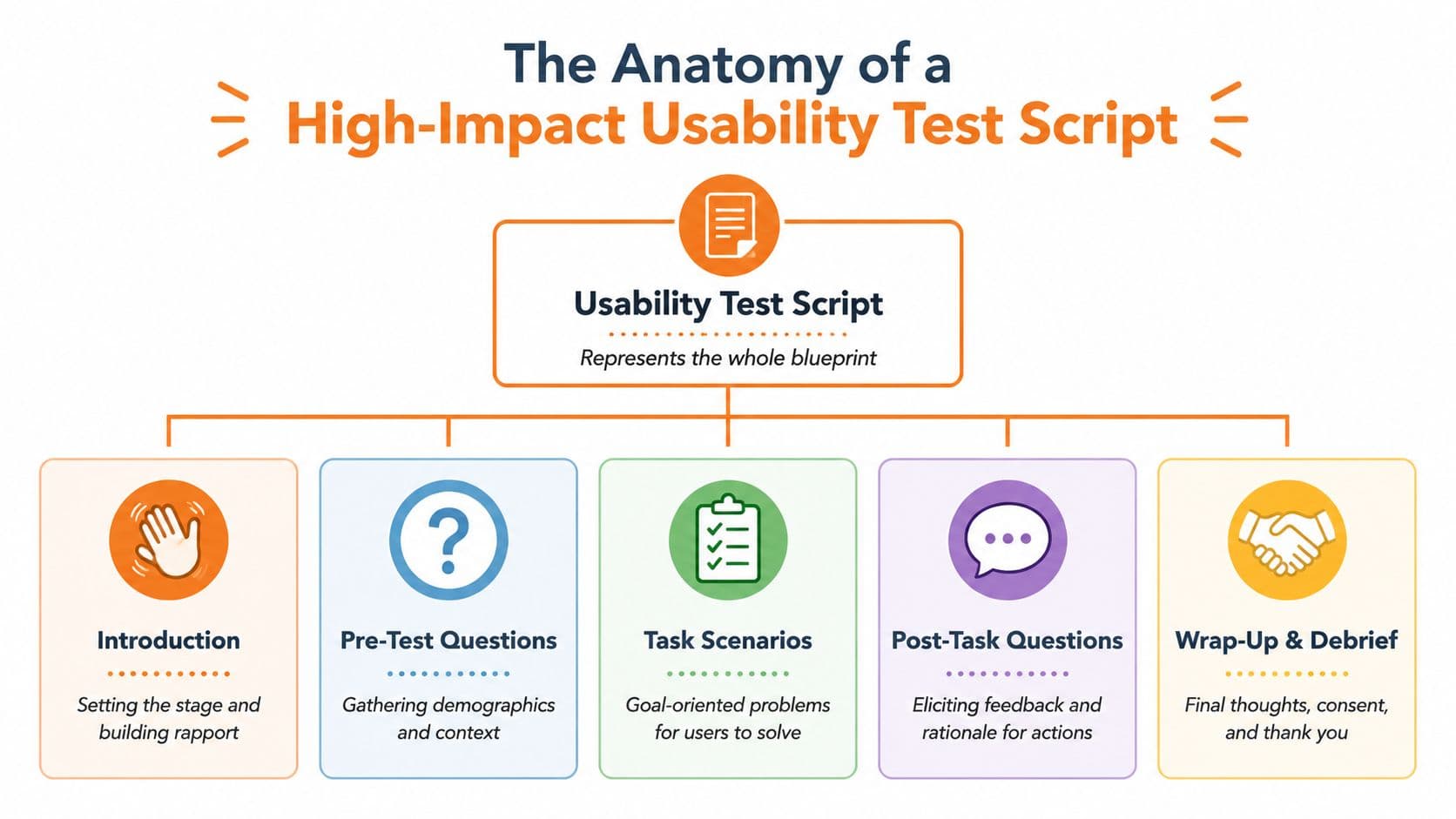
Treat each section as a job to be done#
Here's the version I've seen work repeatedly.
Introduction#
The intro isn't for enthusiasm. It's for psychological safety and expectation-setting.
Use plain language:
- Welcome: Thank them for joining and state your role.
- Purpose: Explain that you're evaluating the product, not their ability.
- Think aloud: Ask them to narrate what they expect, notice, and try.
- Permission: Confirm recording and answer any initial questions.
Keep it calm. Don't oversell the product. Don't preview what you're excited about. Excitement leaks bias.
Pre-test questions#
Warm-up questions should gather context without steering the participant toward the task.
Ask about:
- Current workflow: What tools or resources they use now.
- Frequency: How often they do the relevant activity.
- Experience level: Enough to interpret their performance later.
- Environment: Whether they usually work alone, with support, under time pressure, and so on.
A support team testing a help center might ask what the person usually does when they're stuck. A product team testing onboarding docs might ask where new users typically look first for setup guidance. If you need help standardizing documentation language before testing, a solid technical writing style guide helps remove wording noise before it becomes a research problem.
Task scenarios#
This is the core. Every task should describe a goal, not a path.
Bad:
- Click “API Keys” and create a token.
Better:
- You need to connect this product to another tool before a teammate can continue setup. Show me how you'd get the credential you need.
The stronger version reveals whether the label “API Keys” makes sense, whether the navigation hierarchy is clear, and whether the user can map their goal to the interface.
Post-task probes#
After each task, ask questions that clarify reasoning without rewriting history.
Useful probes:
- Expectation: What were you expecting to happen there?
- Decision-making: What made you choose that option first?
- Confidence: How sure were you that you were in the right place?
- Friction: Where did you feel uncertain?
These questions work because they stay anchored to observed behavior.
Wrap-up and debrief#
The close should gather broad reflections, but only after the evidence is captured.
Ask:
- What felt easiest?
- What felt hardest?
- What would you change first?
- What did you expect to find that you didn't?
Then thank them, explain next steps, and end cleanly. Don't keep fishing after the useful part is over.
A practical script template you can adapt#
Below is the skeleton I'd use for most moderated sessions:
| Script section | What it must do |
|---|---|
| Introduction | Reduce anxiety, explain think-aloud, confirm recording |
| Context questions | Establish relevant background without biasing the tasks |
| Task scenarios | Produce observable behavior around realistic goals |
| Follow-up probes | Explain choices, expectations, and moments of confusion |
| Debrief | Capture overall impressions and unresolved thoughts |
The common failure mode is imbalance. Teams overinvest in the intro and debrief because those feel conversational. The value is in the middle. That's where the script earns its keep.
Writing Tasks That Reveal Truth Not Preference#
Task writing is where a usability testing script becomes either sharp or useless.
Most bad tasks are too direct. They tell the participant where to go, what label to look for, or what feature name to match. The participant then succeeds for the wrong reason. They aren't understanding the product. They're following breadcrumbs.

Bad tasks give away the path#
Instruction-shaped tasks create fake confidence.
Examples:
- Weak: Find the contact page.
- Weak: Open the billing settings and update the payment method.
- Weak: Go to the onboarding guide and locate the install steps.
These are navigation cues, not user problems. They reward label-matching.
A better task sounds like something a person would be trying to do:
- Stronger: You've spotted a charge you don't recognize and need help from a real person. What would you do?
- Stronger: Your team's subscription card has expired, and you need to fix billing so service isn't interrupted.
- Stronger: You've just joined the company and need to get this tool working today without asking a teammate.
Notice what changed. The task now has motive, urgency, and context. That pushes real behavior to the surface.
Good tasks create a believable problem#
A good task prompt usually includes three ingredients:
- A role or situation
- A concrete goal
- A constraint or consequence
That third part matters. Constraints stop participants from treating the exercise like a treasure hunt.
For documentation and help content, I often write scenarios around pressure. Setup before a deadline. Fixing a broken workflow. Escalating an issue without waiting. Teams working on onboarding flows can sharpen those scenarios further by borrowing ideas from strong onboarding best practices, especially around first-use friction and missing context.
If the participant can complete the task by scanning for repeated words, rewrite the prompt.
Here's a before-and-after set:
| Before | After |
|---|---|
| Find the return policy | You bought the wrong item and need to know whether you can send it back before contacting support |
| Go to the API docs and authenticate | You're trying to make your first request and need whatever access or credentials are required |
| Locate the vacation policy | You're planning time off and need to understand the approval rules before asking your manager |
The “after” versions test comprehension, findability, and content structure at the same time.
When to use open and closed tasks#
Open tasks reveal discovery behavior. Closed tasks reveal whether a specific path works.
Use open tasks when you want to learn:
- Where people start
- Which labels they trust
- How they interpret the information architecture
- Whether documentation mirrors mental models
Use closed tasks when you want to verify:
- A known flow
- A revised page structure
- A specific form or handoff
- Whether a critical answer can be retrieved cleanly
Later in the process, a walkthrough like the one below can help a team hear how task framing changes what participants expose during testing.
One more rule. Don't stack every task at the same difficulty. Start with something easy enough to settle nerves, then escalate into ambiguity, cross-page navigation, or recovery from error. You're not writing prompts to be elegant. You're writing them to surface reality.
How to Find and Screen the Right Participants#
A strong script can't save a weak sample.
Teams often spend days polishing prompts and only minutes thinking about who's taking the test. Then they recruit whoever is available, run the sessions, and draw conclusions about users who were never in the room. Most bad usability research was doomed during recruitment.
Screen for behavior not identity labels#
The screener should look for relevant behaviors, responsibilities, and recent experience. Job titles are only rough hints. “Operations manager” tells you less than “owns procedure documentation and updates it when workflows change.” “Customer success” tells you less than “regularly sends help content to customers and escalates missing docs.”
Screen for things like:
- Recent tasks: What they've done lately in the problem space.
- Tool familiarity: Whether they've used similar systems, docs, or workflows.
- Decision role: Whether they perform the action, supervise it, or just observe it.
- Support habits: Whether they self-serve, ask coworkers, or contact support first.
If you're testing a help center, recruit people who actively rely on self-serve support. If you're testing internal SOPs, recruit the staff who execute the process, not only the managers who designed it.
A screener should exclude people on purpose#
A good screener is not inclusive. It is selective.
You need to screen out people who:
- Know the product too well: Internal staff, former staff, power users in early discovery work.
- Test too often: People who have become expert participants.
- Only fit on paper: Demographically similar, behaviorally irrelevant.
- Need excessive coaching: If the task domain itself is unfamiliar, the session becomes training.
Here's a practical pattern that works:
| Screener question type | Better example |
|---|---|
| Behavior | Tell us about the last time you tried to solve this kind of problem |
| Frequency | How often do you handle this workflow in your normal work |
| Tool usage | Which tools or docs do you usually consult first |
| Exclusion | Have you participated in product research recently |
Don't reveal the “right” answer in the screener. If you ask, “Do you create SOPs and manage a documentation portal?” you'll attract people who optimize for acceptance. Ask neutral questions and infer qualification from the response.
Recruit for the task, not for the persona slide.
There's always a trade-off between perfect fit and recruiting speed. In practice, I'd rather test with someone who clearly performs the target behavior than someone who matches the demographic profile but never faces the actual problem.
Scripting for Moderated vs Unmoderated Tests (Examples)#
Moderated and unmoderated tests are not the same method with a different calendar invite. They demand different script design.
In moderated sessions, the moderator carries some of the load. You can clarify boundaries, notice confusion in real time, and ask follow-up questions that matter. In unmoderated sessions, the script must do all of that alone. If the prompt is vague, the session collapses.
Moderated vs. Unmoderated Testing#
| Factor | Moderated Testing | Unmoderated Testing |
|---|---|---|
| Facilitation | Live researcher guides the session | Participant completes tasks alone |
| Flexibility | High. You can probe, pause, and clarify boundaries | Low. Instructions must stand on their own |
| Best use | Complex workflows, exploratory research, documentation gaps | Straightforward tasks, message testing, broader validation |
| Risk | Moderator bias if phrasing drifts | Task failure from unclear wording |
| Output quality | Richer reasoning and context | Cleaner scale, thinner explanation |
If you need broader workflows for collecting user feedback for web apps, especially outside formal moderated research, it helps to separate lightweight product feedback collection from true usability testing. They overlap, but they're not interchangeable.
Example moderated script#
This example assumes you're testing a new help center.
Moderator opening
“Thanks for joining. I'm going to ask you to complete a few tasks and think out loud while you do them. I'm not testing you. I'm testing whether the product and content make sense.”
Warm-up
- What do you usually do first when a software tool confuses you?
- How do you prefer documentation to be structured when you need an answer quickly?
- What frustrates you most in help centers?
Task 1
“You're setting up this product for the first time and need to connect an integration before a teammate can continue. Starting from the homepage, show me how you'd figure that out.”
Moderator notes
- Watch first click
- Note whether they search or browse
- Don't define “integration” further unless the participant asks what the word means in the scenario
Probe after task
- What were you expecting to find first?
- What made this page feel useful or not useful?
Task 2
“Something stopped working after setup. You want to confirm whether the problem is on your side before contacting support.”
Probe after task
- What told you that you were in the right place?
- Was anything missing that would have helped you decide faster?
This script works because it leaves room for adaptation. If the participant veers into an unexpected but relevant area, the moderator can follow the behavior.
Example unmoderated script#
For unmoderated testing in a platform like UserTesting, write as if no one will rescue the participant. Because no one will.
Opening prompt
“You'll complete a few tasks using a website or prototype. Please say your thoughts aloud as you work. If you get stuck, explain what you're looking for and what you'd try next.”
Task 1
“You need to set up the product so someone else on your team can use it. Find the information or steps you'd rely on to begin.”
Follow-up response prompt
- What did you expect to find?
- How confident are you that you found the correct answer, and why?
Task 2
“You encountered a billing problem and want to solve it without contacting support if possible. Show how you'd try to do that.”
Fallback prompt
- If you can't complete the task, describe the last place that seemed promising and why.
The difference is blunt. In moderated research, the script guides a live process. In unmoderated research, the script must anticipate confusion, recover from silence, and produce analyzable output without intervention. If you reuse your moderated wording in an unmoderated test, it usually fails.
Turning Raw Feedback into Actionable Product Changes#
A test that ends in a debrief deck and nothing else is theater.
The work starts after the session, when you turn scattered notes, recordings, quotes, hesitations, and dead ends into a small set of decisions. During this process, many teams get lost. They collect observations, but they don't synthesize causes. Or they jump straight to design ideas before they've agreed on the actual problem.
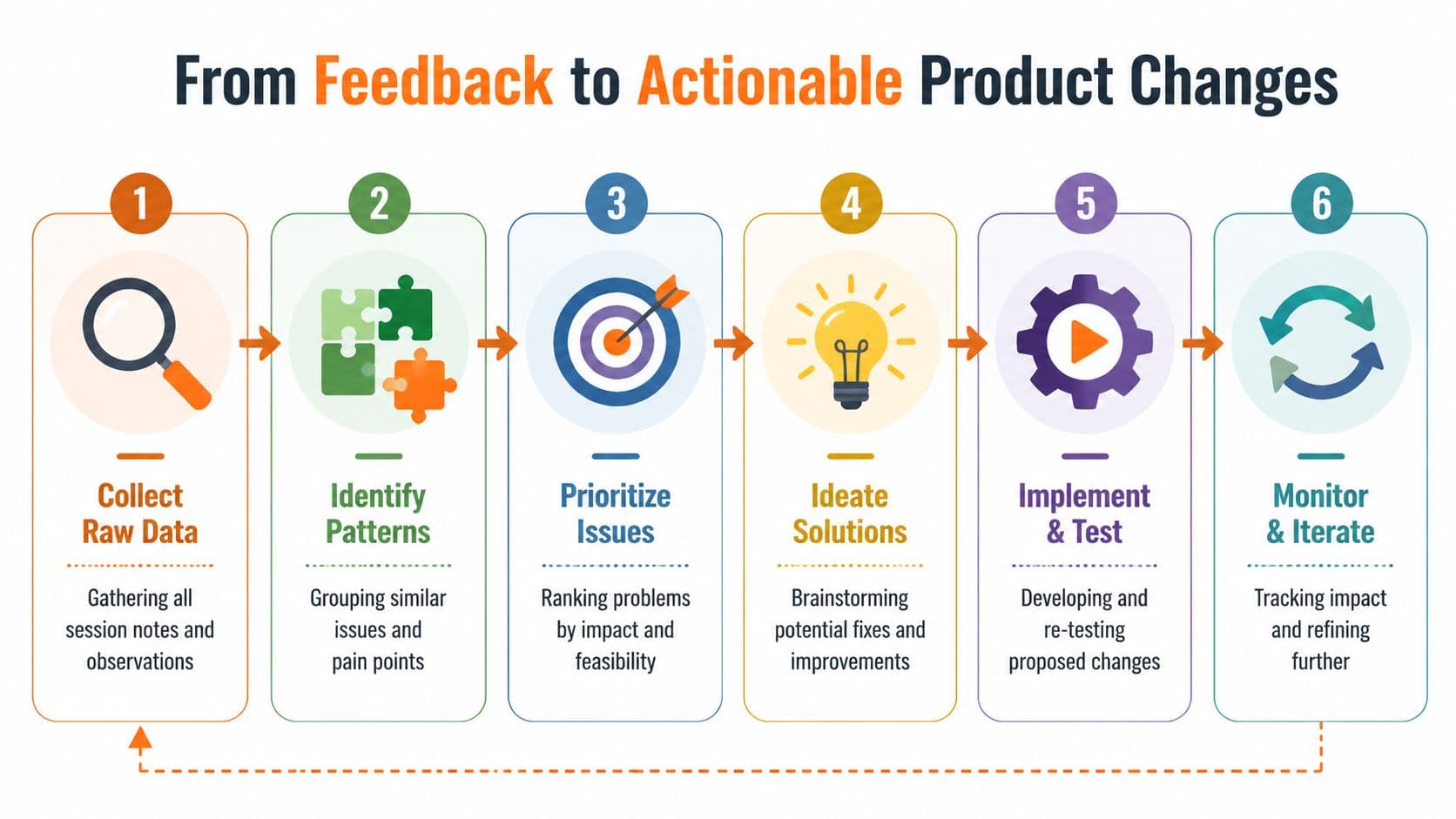
Synthesize observations before you argue solutions#
Start with a simple analysis frame. For each task, document:
- Outcome: Completed, partially completed, abandoned, or completed with assistance
- Observed friction: Pauses, backtracking, repeated scanning, misclicks, reformulated searches
- Likely cause: Label mismatch, poor hierarchy, weak content structure, missing reassurance, unclear next step
- Severity: How badly the issue blocks completion or trust
A lightweight rainbow spreadsheet still works well. Group sticky notes or rows by theme, not by participant. You're looking for repeated patterns, not dramatic anecdotes.
A short issue table helps:
| Issue pattern | Likely root cause | Action type |
|---|---|---|
| Users scan but don't click the right page | Label doesn't match user language | Rename or reorganize |
| Users find the page but hesitate | Content lacks decision support | Rewrite with clearer cues |
| Users search repeatedly with different terms | Information architecture is fragmented | Consolidate or cross-link |
| Users complete task but remain unsure | Feedback and confirmation are weak | Add validation and next steps |
If your team wants a broader view of tooling for synthesis, this roundup of best customer feedback analysis tools is useful context. Just don't confuse tooling with judgment. A tag cloud won't tell you what to fix first.
Documentation findings are product findings#
This matters more than is commonly understood. When users fail in documentation, that doesn't mean “the docs team has a docs problem.” It often means the product language, navigation model, and support strategy are misaligned.
For AI-facing systems, the signal gets even stronger. If humans can't predict where an answer lives, machines will struggle too. If headings are vague, if terminology shifts between product UI and help content, if key steps are buried inside bloated pages, both search systems and AI agents will retrieve badly.
That's why documentation usability should feed directly into product prioritization. The loop is simple:
- fix structure,
- retest findability,
- monitor what people search,
- compare failed tasks to support demand,
- revise the content model.
If you're trying to operationalize that loop, documentation teams should also watch documentation analytics and metrics closely enough to connect test findings with actual content performance.
The best usability insight is the one that changes the product, the docs, and the retrieval path at the same time.
The teams that do this well don't treat usability testing as a one-off validation exercise. They use the script to generate evidence, the synthesis process to isolate causes, and the documentation layer as both a support asset and a retrieval system for humans and AI.
If you're rebuilding a help center, SOP library, onboarding hub, or product docs, Dokly is the option I'd put in front of teams that care about both usability and AI-readiness. Tools like Docusaurus and Mintlify can work, but they often come with setup friction, content structure compromises, or too much technical overhead for the people who own the docs. Dokly is simpler to run, faster to publish in, and much better aligned with modern retrieval. You can explore the platform, its editor, and utilities through the Dokly tools library, or learn from the walkthroughs on the official Dokly YouTube channel. If your documentation needs to serve customers, internal teams, and AI agents without turning into a maintenance project, Dokly is the easy choice.