TL;DR
To organize a knowledge base: audit existing content into keep/merge/delete buckets, sort everything into 5 categories (Get Started, How-To, Concepts, Reference, Troubleshooting), cap hierarchy at 3 levels, use verb-led titles under 60 characters, enforce a single page template, and run a quarterly review. The structure stays clean only if someone owns the calendar event.
To organize a knowledge base, group articles into 5-7 task-based categories, limit hierarchy to 3 levels deep, give every page the same skeleton, and schedule a quarterly audit. The hard part isn't the structure — it's the maintenance ritual that keeps it from drifting back into chaos six months later.
Most posts on this topic stop at "use clear categories." This one gives you the exact taxonomy, the character limits, the audit decision tree, and the quarterly checklist.
Why most knowledge bases turn into a graveyard#
Open any company's internal wiki that's been around for three years. You'll find:
- Three articles explaining the same onboarding process, all slightly wrong
- A "Misc" folder containing 40 documents
- Pages last edited in 2022 marked as the source of truth
- Search that returns 12 results when you query "vacation policy" and none of them are the policy
The structure didn't fail because someone picked the wrong categories. It failed because nobody decided what the categories meant, nobody enforced naming, and nobody owned the cleanup. Knowledge base structure is 20% taxonomy and 80% governance.
The six steps below fix both halves. If you're starting from zero, pair this with our step-by-step guide to building a knowledge base from scratch — that one covers tooling and rollout. This one covers the architecture.
Step 1: Audit what you already have#
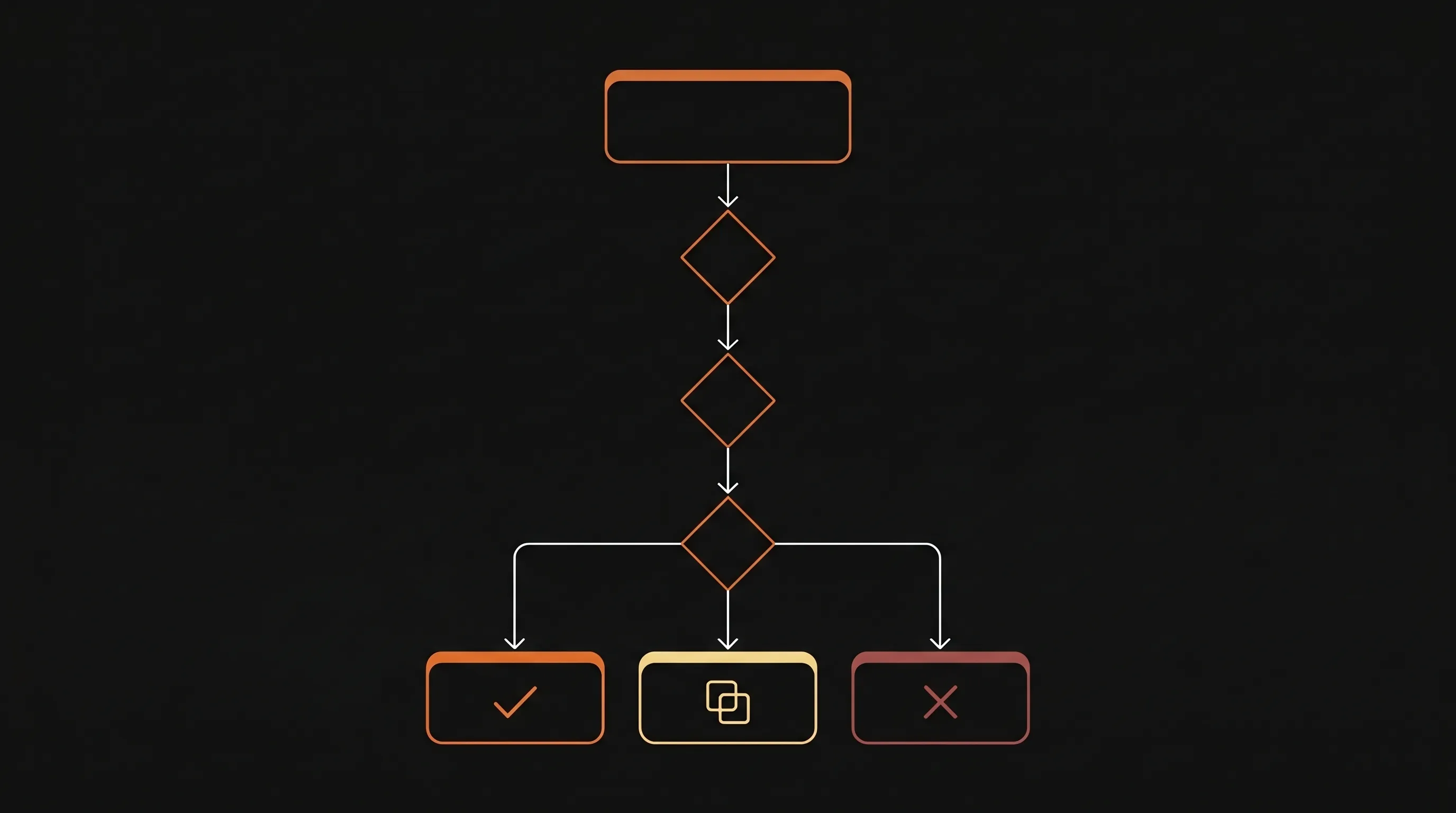
If you're starting fresh rather than reorganizing, this 60-second walkthrough shows the end state we're aiming for:
You can't organize what you can't see. Before picking categories, dump every existing article into one spreadsheet.
Export every page to a spreadsheet
Pull title, URL, last-edited date, page views (last 90 days), and owner into a sheet. Most documentation tools export this directly. If yours doesn't, track which articles aren't working with documentation analytics before you do anything else.
Tag each row with a decision
Add a column with three values: KEEP, MERGE, or DELETE. Don't overthink it on the first pass — the rules below make most decisions automatic.
Apply the decision rules
- DELETE if: zero views in 90 days AND not a policy/legal doc AND not last-edited in the last year. - MERGE if: another article covers the same topic, even partially. Pick the higher-traffic one as the survivor. - KEEP if: viewed in the last 90 days AND still accurate AND has no duplicate.
Get one stakeholder to sign off
Send the spreadsheet to whoever owns the content area. They get one week to flag exceptions. After that, the decisions are final. Without a deadline, the audit never ends.
Do not start writing new articles before the audit finishes. Every new page added to a messy structure makes the cleanup harder, and the new pages tend to duplicate the old ones because nobody knew the old ones existed.
A typical audit deletes 30-50% of pages on the first pass. That's normal. If your number is below 10%, you're being too generous — go through it again.
Step 2: Pick a taxonomy (the 5-bucket model)#
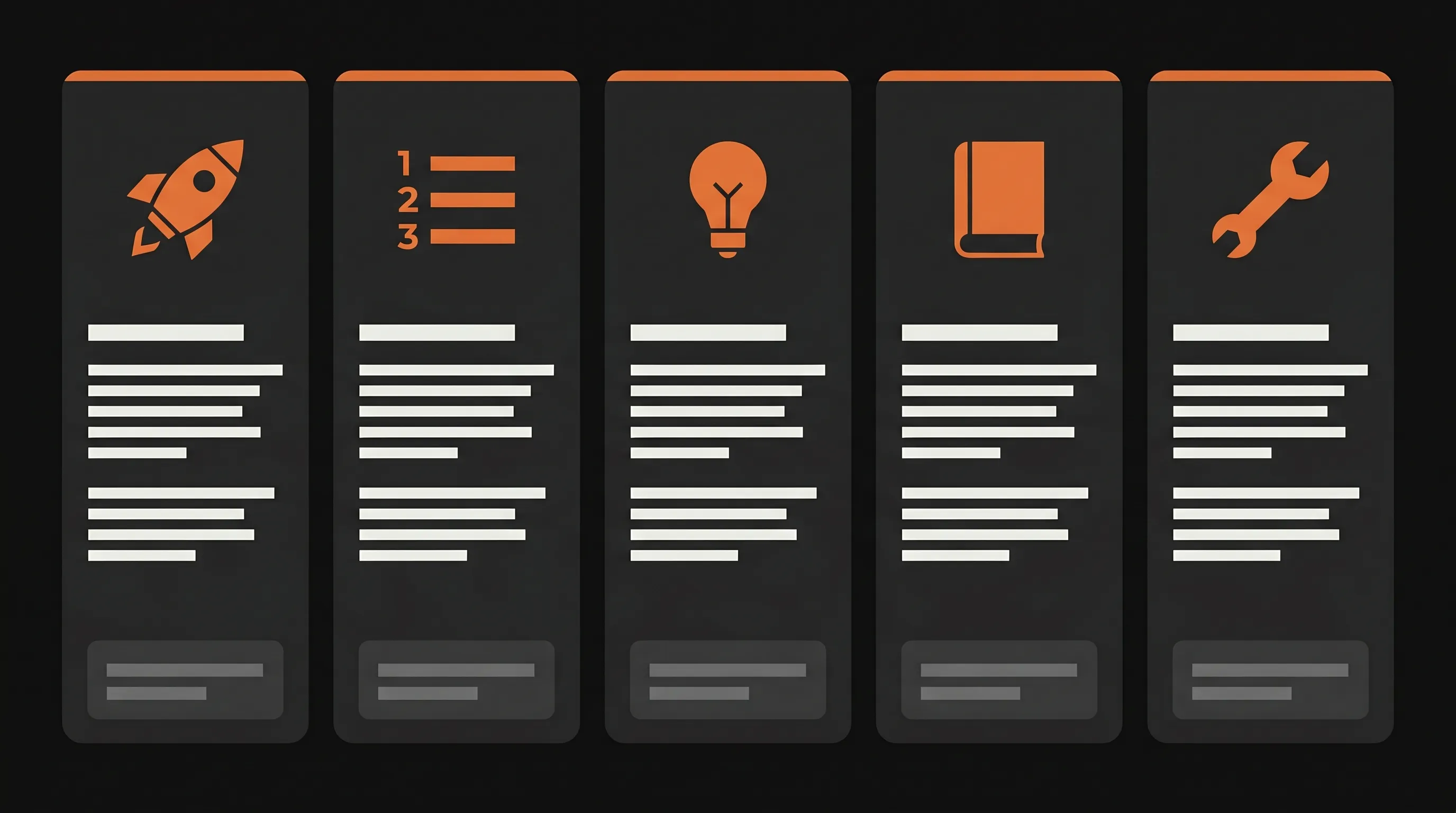
Once the audit is done, every surviving article needs a home. Use this taxonomy, adapted from the Diátaxis documentation framework:
| Bucket | What it answers | Example article |
|---|---|---|
| Get Started | "I'm new — where do I begin?" | Quickstart: send your first invoice |
| How-To | "I have a job to do" | How to set up SSO with Okta |
| Concepts | "Help me understand this" | How webhook retries work |
| Reference | "I need exact details" | API endpoint reference |
| Troubleshooting | "Something is broken" | Fix: 'Domain verification failed' |
Every article belongs in exactly one bucket. If a piece feels like it spans two — say a how-to that needs conceptual context — split it. Put the concept in Concepts, link to it from the how-to.
This model works because it maps to user intent, not internal team structure. A "Billing" category is logical to your finance team but useless to a user trying to cancel a subscription. "Manage your subscription" (a How-To) lands them on the right page in one click.
When to deviate: if you have a large API, give Reference its own top-level entry point. If you ship frequently, add Release Notes as a sixth bucket. Don't add a seventh.
Step 3: Set hierarchy and naming rules#
Pick the rules now, in writing, before any article gets moved. Otherwise contributors will improvise and you'll be back to the graveyard.
Depth: 3 levels maximum#
The hierarchy is Category → Subcategory → Article. That's it. If a fourth level feels necessary, your taxonomy is wrong — split the category instead. The Nielsen Norman Group on flat vs. deep hierarchies has decades of research showing that deeper hierarchies hurt findability faster than wider ones do.
Title rules#
| Rule | Why |
|---|---|
| Start with a verb (How-To articles) | Matches how users phrase searches |
| Under 60 characters | Truncates cleanly in sidebars and search snippets |
| No marketing language | "Powerful billing" is not a title |
| Use the user's word, not yours | "Sign in" not "Authenticate" |
| One page = one task | If the title needs an "and", split it |
URL slugs#
- Lowercase, hyphenated:
/how-to/set-up-sso - Mirror the navigation path
- Don't include the category in the slug if it's already in the URL path
- Once published, never change a slug. Set up a redirect instead.
Pro tip
Write the rules into a one-page contributor guide and pin it in the docs tool itself. New writers should hit it before they create their first page. This single document prevents 90% of structural drift.
Top-level count#
Five to seven top-level categories. Below five, articles get crammed into buckets that don't fit. Above seven, users stop scanning the sidebar entirely and rely on search — which means weak search becomes an immediate dead-end.
Step 4: Build a page template every article follows#
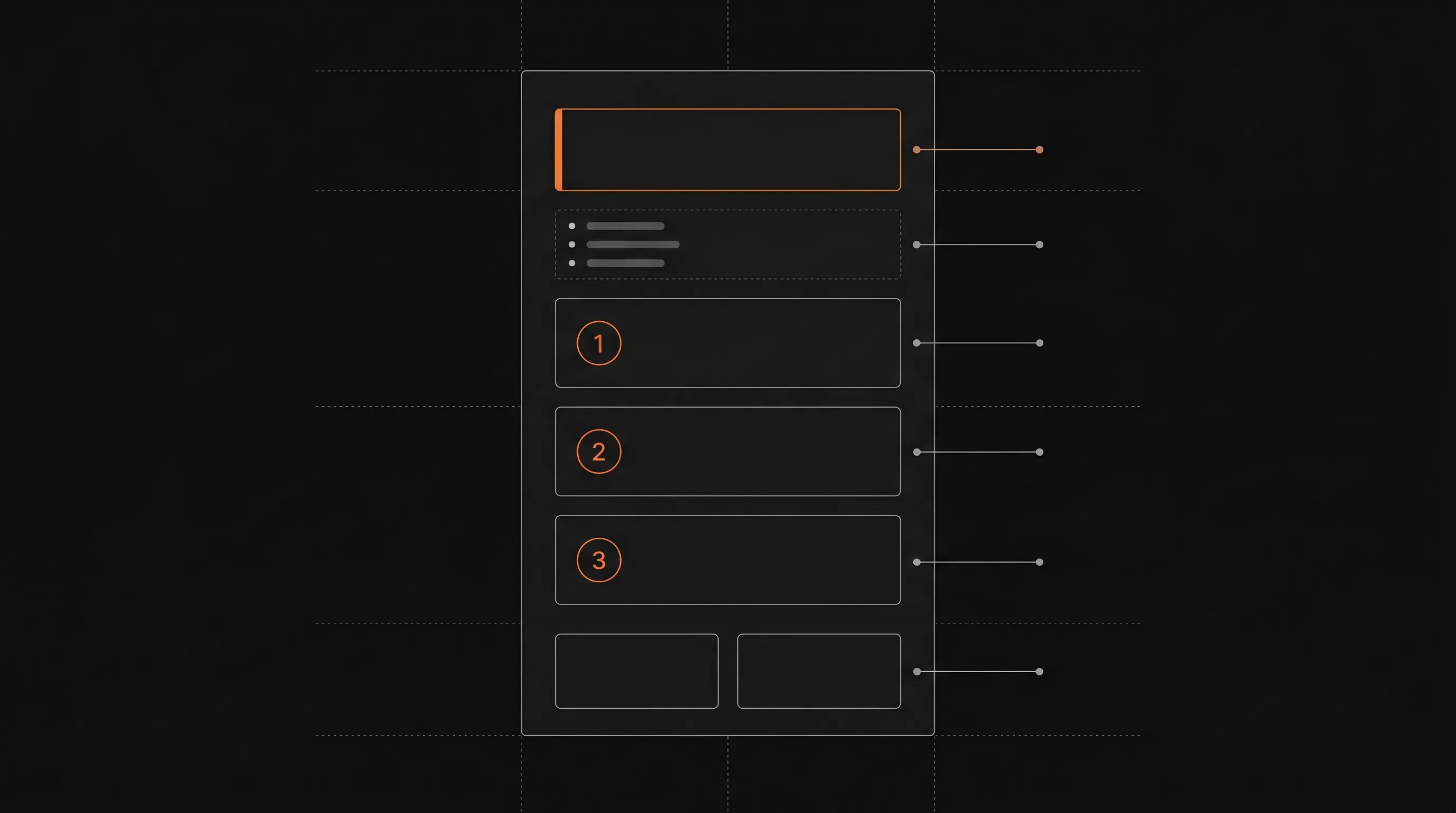
Consistent structure inside articles matters as much as the structure between them. When every page looks the same, readers learn the pattern in 10 seconds and skim the rest.
The standard skeleton:
1. H1 (matches the page title exactly)
2. TL;DR callout — 2-4 lines, the answer up front
3. Prerequisites (for How-To and Get Started only)
4. Body content — Steps for tasks, sections for concepts
5. Common errors (for How-To and Troubleshooting)
6. Related links — 2-4 cards to adjacent articles
Here's the template as MDX, which you can save as a snippet:
# {Page title}

<Callout type="info" title="TL;DR">
{One-paragraph answer to the question this page solves.}
</Callout>

## Prerequisites

- {Item 1}
- {Item 2}

## Steps

<Steps>
  <Step title="{Imperative verb}">
    {What to do, with code or screenshot.}
  </Step>
</Steps>

## Common errors

**{Exact error string}**
{Cause and fix in 1-2 sentences.}

## Related

<CardGroup cols={2}>
  <Card title="{Related title}" href="{url}" />
</CardGroup>
Different page types use different subsets — Concepts pages skip Prerequisites and Steps, Reference pages skip TL;DR — but every page starts with the H1 and ends with Related links. That's non-negotiable.
If you let two contributors design two different page layouts in the same week, it'll never converge. Lock the template before you migrate the audited content.
Step 5: Wire up search, navigation, and cross-links#
Structure on disk doesn't help if users can't navigate it. Three layers do the wayfinding:
Sidebar grouping#
The sidebar mirrors your taxonomy exactly: 5-7 collapsible top-level entries, each with subcategories beneath. Order matters — put Get Started first, Troubleshooting last. The middle three (How-To, Concepts, Reference) sort by usage data once you have it.
In-page cross-links#
Every time an article mentions a concept that has its own page, link to it inline. Three rules:
- Link on the first mention only, not every mention
- Anchor text matches the linked page's title where possible
- Never write "click here" or "this article" — link the noun
Related cards at the bottom#
Two to four cards pointing to logical next steps. For a "How to set up SSO" page, related cards might be "Configure SAML attributes," "Troubleshoot SSO login errors," and "SSO for service accounts." This is where you recover users who finished one task and have a follow-up.
Search#
Strong search hides weak structure but doesn't replace it. If your search-with-no-results rate is above 10%, the structure or the article titles are failing — not the search engine. Fix the underlying content before tuning the search relevance algorithm.
Step 6: Set a maintenance ritual that actually happens#
This is the step every other guide skips, which is why every other guide's advice doesn't survive contact with reality.
Put a recurring calendar event on someone's calendar — a real human, not a team — for the first week of each quarter. The agenda:
Run the audit query
Pull the same spreadsheet you built in Step 1: every page, last edit, 90-day views. Tag pages with zero views and pages last-edited over 12 months ago.
Review search failures
Export all search queries that returned zero results in the past quarter. The top 10 are your missing-content backlog.
Check ownership
Every category has a named owner. If the owner left the company, reassign before the next quarter — orphaned categories rot fastest.
Scan for broken links
Most documentation tools have a built-in checker. Run it. Fix the links the same day, not later.
Verify the depth limit
If any category drifted past 3 levels, flatten it now. A single overgrown category is a cancer for the whole structure.
The single metric that tells you the structure is failing: search-with-no-result rate above 10%. If users keep searching for things that don't exist (or exist under names they don't recognize), the taxonomy is wrong somewhere.
Block 90 minutes for the quarterly review. Less than that and people skip steps. More than that and they procrastinate scheduling it.
Real-world layouts: support, internal, and developer KBs#
The 5-bucket model adapts. Same skeleton, different labels.
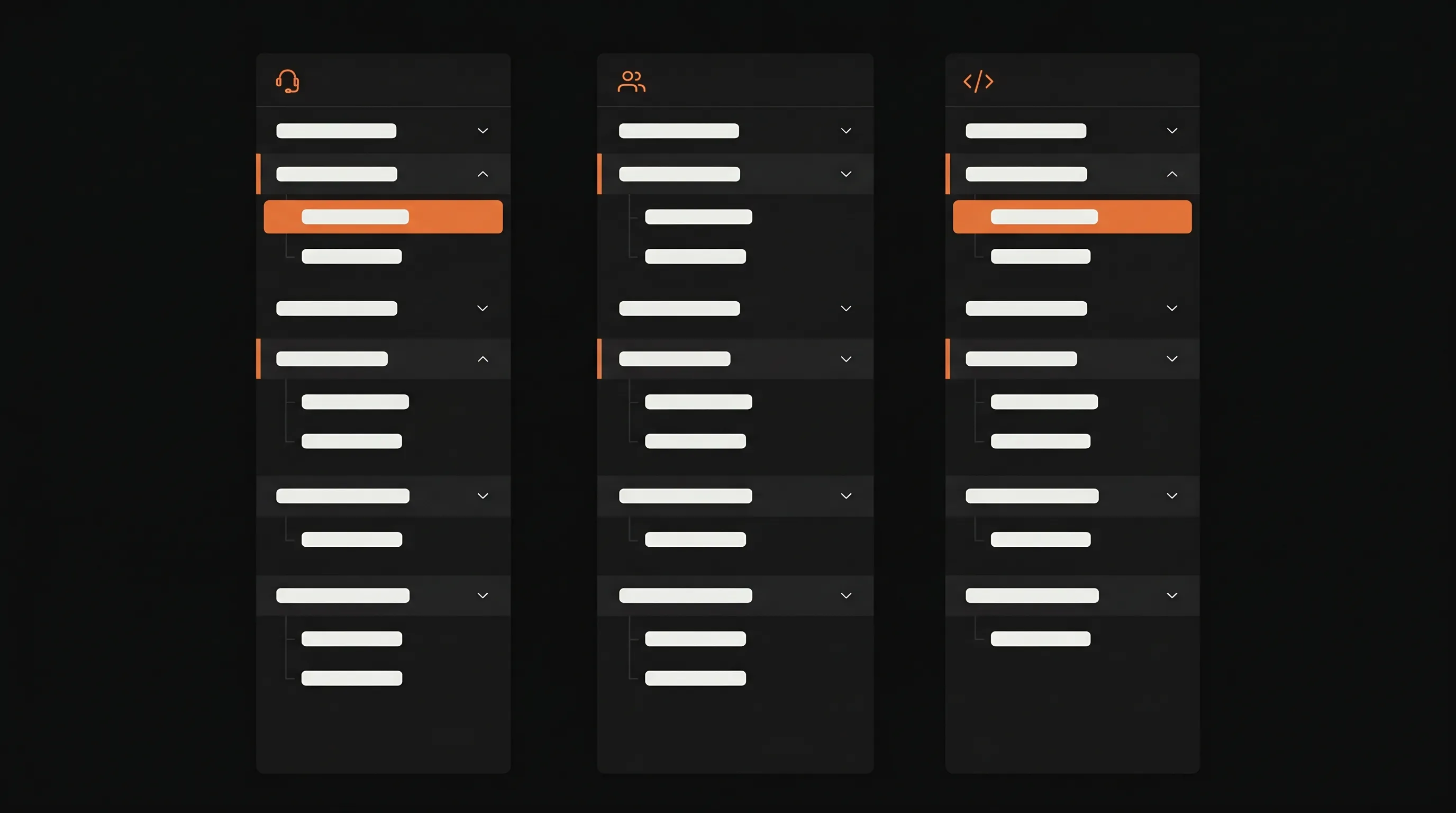
Support knowledge base#
Aimed at customers, optimized for self-service deflection.
- Get Started → "New to Product X"
- How-To → "Manage your account" / "Use feature X"
- Concepts → "How Product X works"
- Reference → "Plans and pricing"
- Troubleshooting → "Fix common problems"
The deflection KPI is article views per support ticket avoided. See our notes on support knowledge base setup for the rollout playbook.
Internal team knowledge base#
Aimed at employees, optimized for finding policy and process fast.
- Get Started → "Onboarding"
- How-To → "How we do X" (SOPs)
- Concepts → "How the company works" (org, decision-making)
- Reference → "Policies and benefits"
- Troubleshooting → "Who to ask when..."
The GitLab handbook is the gold-standard public example of an internal KB at scale — worth studying for naming and depth even if you never build something that big. For smaller teams, Dokly for internal team documentation covers the same patterns at a more practical size.
Developer knowledge base#
Aimed at engineers integrating with your product.
- Get Started → "Quickstart"
- How-To → "Guides"
- Concepts → "Core concepts"
- Reference → "API reference" (usually the largest section)
- Troubleshooting → "Errors and limits"
Reference dominates — it's often 60-70% of total pages. That's fine. Just don't let it spill over and absorb the How-To section. Reference answers "what does this endpoint do" and How-To answers "how do I implement OAuth." Different jobs, different pages.
Frequently asked questions#
How many top-level categories should a knowledge base have?#
Five to seven. Below five and articles get stuffed into buckets that don't fit. Above seven and users stop scanning the sidebar — they default to search and bounce when search is weak. The 5-bucket model in this post (Get Started, How-To, Concepts, Reference, Troubleshooting) works for most teams. Add a sixth or seventh only if you have a clear reason, like a separate API reference or release notes section.
How deep should a knowledge base hierarchy go?#
Three levels maximum: category → subcategory → article. Past three levels, users lose orientation and breadcrumbs become unreadable. If you feel pressure to add a fourth level, that's a signal your taxonomy is wrong, not that you need more nesting. Either split the category in two or flatten the structure and rely on tags for the secondary dimension.
Should I organize by topic or by user journey?#
By task, which is closer to journey than topic. Users come to a knowledge base with a job to do — "cancel my subscription," "set up SSO," "fix this error." Topic-based layouts ("Billing," "Security," "Errors") feel logical to the team that wrote them but force users to translate their problem into your internal categories. Task-based labels like "Manage your subscription" or "Sign in with SSO" shorten that translation step.
How often should a knowledge base be reviewed and updated?#
Quarterly for structure, monthly for content. Each quarter, run a full audit: which articles got zero views, which searches returned no results, which categories grew past the depth limit. Monthly, owners of each section spot-check that the top 10 articles by traffic are still accurate. Without a calendar event on someone's calendar, the review never happens — that's how knowledge bases rot.
What's the difference between a knowledge base and documentation?#
Documentation is a subset of a knowledge base. Documentation usually refers to product or technical reference material aimed at one audience (developers, end users). A knowledge base is broader — it can include internal SOPs, support articles, onboarding guides, and policies, often serving multiple audiences. The organization principles in this post apply to both, but knowledge bases need stricter audience separation because the content is more mixed.
Should the knowledge base structure match the product's structure?#
Loosely, not exactly. Mirror the product's top-level concepts so users feel oriented, but don't copy your internal feature tree one-for-one. Engineering teams group features by codebase ownership; users group them by goal. A "Notifications" section in the product might split into "Email setup," "Slack integration," and "Notification rules" in the knowledge base because that's how users search for it.
Where to go next#
Build a knowledge base from scratch
The full setup playbook from tooling to launch
Knowledge base software guide
Compare the tools that fit each KB type
If you want a documentation tool that enforces the page template, caps hierarchy depth, and surfaces search-with-no-result analytics out of the box, try Dokly free — the structure rules in this post are easier to keep when the tool helps you keep them.